

Google services are powerful, but they come with some major baggage; telemetry, proprietary systems, and vendor lock-in. This install guide is your roadmap to a truly independent Android experience. I'm diving deep into the process of stripping out Google dependencies, replacing core components with FOSS alternatives, and running a phone that runs on your terms. Ready to go open?
This project started with a simple problem; I was browsing Google Drive one day and noticed it had some photos I had taken which I didn't want on the public cloud. I certainly didn't upload them and used Nextcloud for file backups anyway, so had no reason to ever enable Google backups from my Android device.
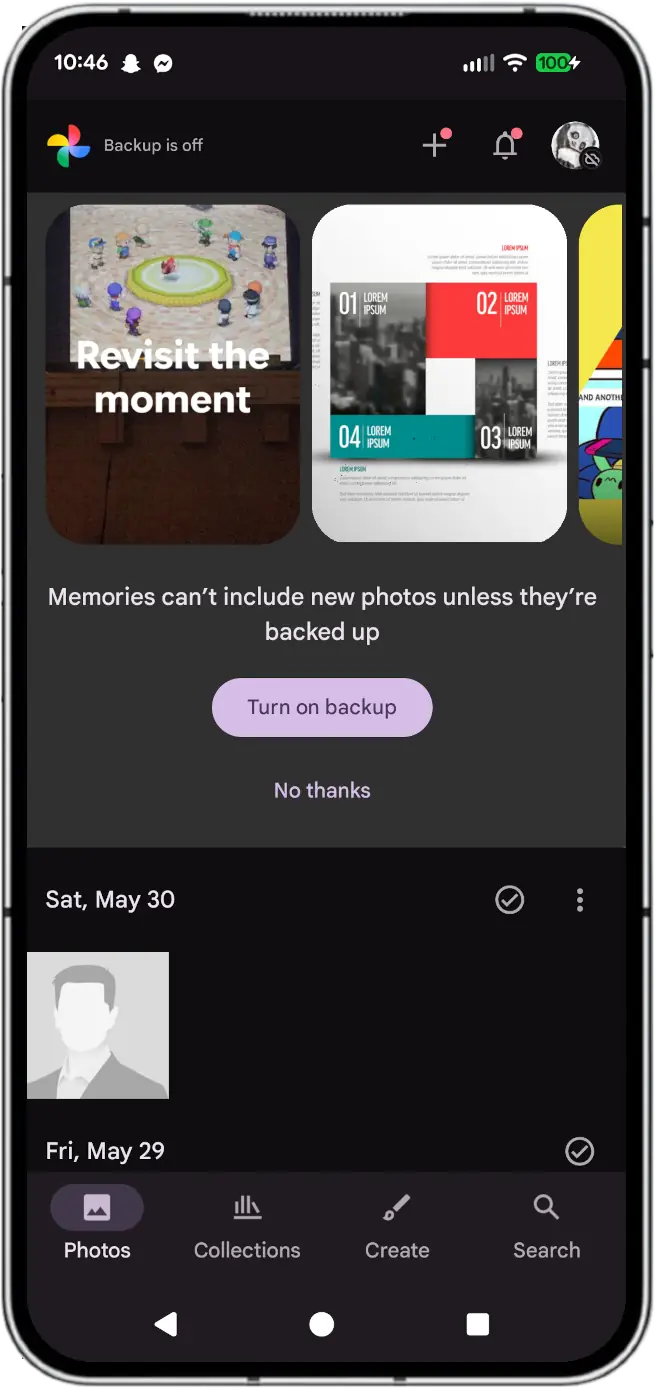
Evidently a recent update on my phone force-enabled Google backup of photos to Google Drive. While having this option is great, auto-enabling it is less ideal.
Prior to that, I had many many instances of Google photos trying to enable auto-upload to Google Drive despite my continual rejection of this "feature". Evidently I was not the only person with this problem either.
Bad software, just uninstall and replace it. This is a normal approach I follow; if a piece of software doesn't work for my workflow, I remove it and try something else. However because this is Google, they decided that "Photos" is a "core application" and therefore cannot be removed. You can disable it, but the software and libraries are still taking up space and may be re-enabled by a future update outside your control.
Ultimate proverbial "nail in the coffin"; this was when I was working on a camera in a ceiling when my Google-powered Android phone made an unusual ringing noise; it was clearly a call notification, but was not any of the expected tones I generally hear from the device. Turns out it was a spam call from Google Meet. Another application which I had not used in years and never even enabled or configured on this specific phone! Worse yet, because it's a Google product, it can't be removed either!
The Android base is technically kind of still open source, and the AOSP is still available and maintained. It's like how Chromium is an open source browser and Chrome is a fork with all their nonsense bloat glued over top. Google's Android then takes that base and glues all their closed source, privacy invasive bloatware on top of it.
LineageOS is built on top of that same open source base operating system so it can benefit from the contributions and work from Google employees and open source engineers, just without the bloat. Lineage is not a new, "fly-by-night" project either; it is the direct lineage of the CyanogenMod community project launched in 2009 by Stefanie Kondik with goals to free users of Android of (at that time) carrier provided bloatware and anti-features which many people found disruptive and intrusive.
In 2016, the CyanogenMod project collapsed due to failing to commercialize the open source project, (presumably a consequence to accepting venture funding in 2013), which left the code up in the air. Being open source however, many of the core developers forked the project to LineageOS to continue the maintenance. In about a month the core team had released the first nightly build of LineageOS 14.1.
LineageOS has support for a wide variety of devices, but it must be noted that builds are specific to that model of phone, so you cannot simply use a generic installer. This is because under the hood each phone may have slightly different pinout configurations for the embedded devices and sensors within each phone, not to mention entirely different sensors and hardware manufacturers.
(Unlike the PC market where devices generally follow published standards, phones do not quite follow by the same standard guidelines and generally just "YOLO" with their hardware.)
Since each phone is different, here are the general steps required to install a new operating system on phones. Some phones may have a more complicated installation process, some may be easier.
Checkout the device support list to verify your phone is in the list at all. Chances are good that it is supported, but double check. Each phone may also have slightly different installation procedures too.
Once confirmed, download the .img files for your specific device. Different devices will have different files, but generally speaking you will have:
The Google closed-source binary blobs are available if you wish to use that functionality, but since this entire rabbit hole started with Google software, I opted to skip it for my build. If you do plan on installing it, ensure you grab that .zip and load it before you start the OS for the first time as otherwise Google services may crash.
Due to security issues with phones, notably due to theft, many phones may hardware lock if the operating system is flashed with an existing Google account present. To prevent this, perform a factory reset to clear the hardware authentication to your Google account.
In order to gain access to the functions needed to load this new operating system, you must enable developer mode and unlock the bootloader to allow new firmware to be installed.
With adb and fastboot, upload the new firmware to the device as per the device-specific instructions.
Once installed, start the phone normally and start enjoying a de-Googled phone. Please note, at this stage your bootloader is still unlocked so anyone can flash a new operating system onto the phone. If you wish to prevent that, you may want to relock your bootloader.
If you do plan on relocking the bootloader, do so before customizing as it will issue another factory reset of the data!
My workflow was relatively easy, though I did run into an annoying bug where the device flashing mode was not recognized by my AMD system with USB-3 ports everywhere. (This is a bug in the AMD implementation of the USB-3 controller and the Linux kernel. Some commands required by fastboot expect USB-2 and are unsupported with the default power management configuration.)
Once I performed a factory reset, skipped any Google registration, and re-enabled developer mode and:
# Reboot the phone into bootloader mode
adb -d reboot bootloader

# Verify fastboot can see the device
fastboot devices

# Unlock bootloader
fastboot flashing unlock
Once unlocked (which wipes all user data again), I re-enabled developer mode again to upload the new operating system:
# Reboot the phone into bootloader mode (again)
adb -d reboot bootloader

# Verify fastboot can see the device (again)
fastboot devices

# Upload required disk images
fastboot flash boot boot.img
fastboot flash dtbo dtbo.img
fastboot flash vbmeta vbmeta.img
fastboot flash vendor_boot vendor_boot.img

# Reboot to bootloader mode
fastboot reboot bootloader

# Flash recovery onto your device
fastboot flash recovery recovery.img
From here, I used the on-screen touch screen to select to boot into the Recovery mode for the user-space applications.
adb -d sideload /path/to/lineage-xx.x-yyyymmdd-nightly-zzzz-signed.zip
This step took the longest amount of time as this was the largest file; transfer took about 10 minutes to complete and stopped at 47%, but evidently this was expected on some hardware.
Once all requested packages are installed while in recovery mode and the phone is restarted, the phone drops to the first-run setup. This consists of:
That's it. No "log into third party service", no "forget your password?", no "you must enter a birthdate".
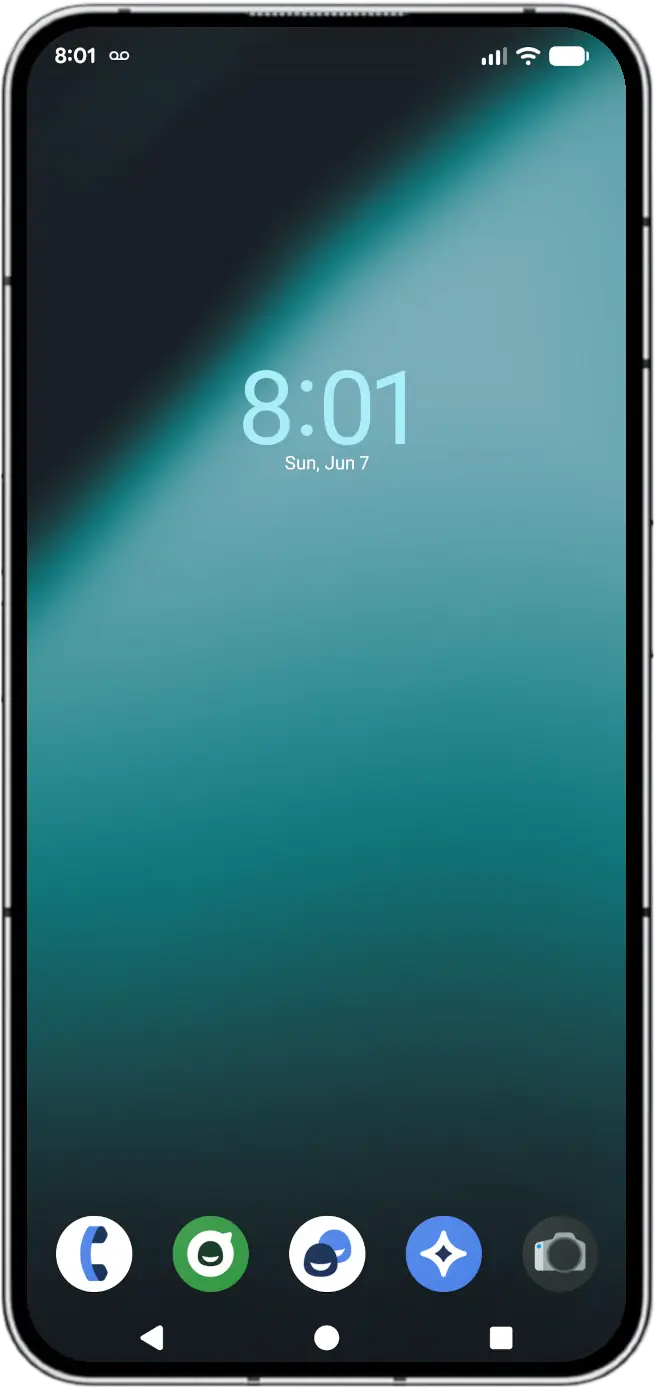
The homescreen for LineageOS provides a default clean feeling without AI rubbish, adverts, and useless widgets, though being stock Android you are free to add whatever widgets you'd like to include for your own personal preference.
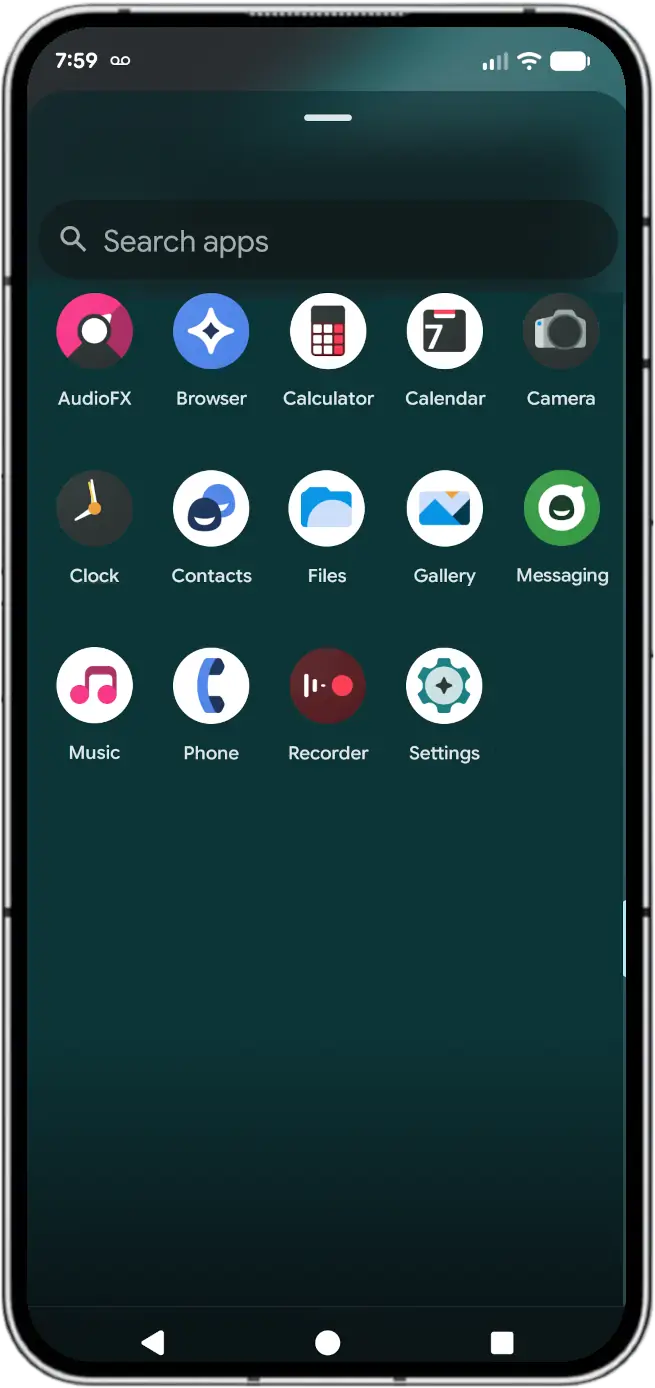
The provided apps provide bare-bones functionality; just a basic browser, phone system, and a handful of common utilities. The default installation doesn't even provide an app store, as they respect the user's freedom to select whichever app store you prefer to use.
Ready to ditch Google and free your phone? Go check out the LineageOS supported devices. Stay tuned for a feature comparison of stock Android vs LineageOS coming soon!